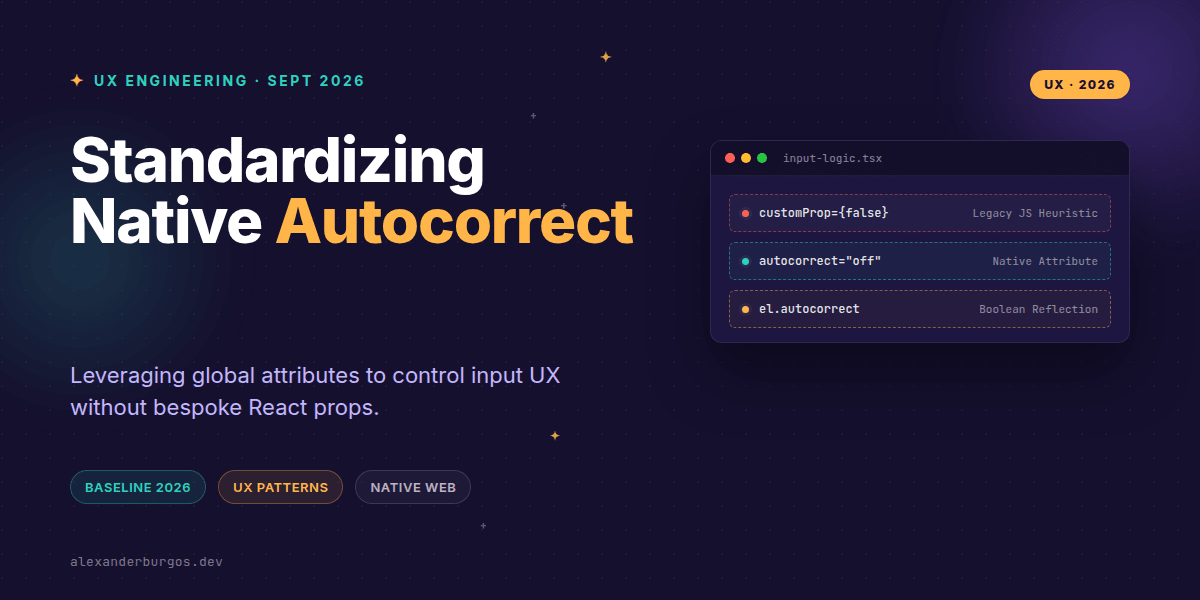
Right, let's talk about one of the most frustrating friction points in mobile UX: the overzealous autocorrect. We've all been there, trying to type a technical serial number or a unique brand name into a form, only to have the browser "helpfully" swap it for a common dictionary word the moment we hit space.
For years, controlling this behaviour was a bit of a Wild West situation. We relied on non-standard Apple extensions or complex JavaScript heuristics to stop inputs from mangling user data. But as of August 2026, with Chrome 152 hitting stable, the autocorrect attribute has officially become Baseline Newly Available across all major engines.
What is the autocorrect attribute?
The autocorrect HTML global attribute is an enumerated control for editable text. It tells the browser whether it should automatically fix spelling or punctuation errors as the user types. Unlike spellcheck, which just highlights errors with that familiar red squiggly line, autocorrect actually modifies the input.
- on (or an empty string): The browser is free to correct text based on its internal dictionary.
- off: The browser should leave the user's input exactly as it is.
What makes this particularly exciting for us UX engineers is the new HTMLElement.prototype.autocorrect reflection. It’s now a proper boolean API surface. If you set the attribute in HTML, the DOM property reflects it, and vice versa. It’s clean, predictable, and native.
Why this matters for your Design System
In a large-scale design system, we often see "prop sprawl." I've seen components with props like disableSmartPunctuation or isTechnicalInput just to handle these edge cases. By embracing the native attribute, we can standardise our TextField and TextArea components without bespoke logic.
// Instead of this bespoke mess:
<MyInput smartFix={false} />

// We do this, forwarding native attributes:
<TextInput autocorrect="off" spellcheck="true" />
This approach respects the user agent. MDN reminds us that the actual correction behaviour—which words get swapped and how—is still dependent on the device's underlying services. By using the native attribute, we aren't trying to outsmart the OS; we're simply giving it the correct instructions.
Accessibility and Localization Wins
From an accessibility standpoint, unexpected text changes can be incredibly disorienting, especially for users with cognitive disabilities or those using assistive technologies. Explicitly disabling autocorrect on fields meant for codes, usernames, or technical identifiers isn't just a "nice to have"—it's a significant usability improvement.
It’s also a massive win for localization. If you're building a form where users might enter non-dictionary terms or mixed-language strings, native autocorrect often fails miserably. Being able to toggle this off declaratively based on the context of the field makes our systems much more robust globally.
The Gotchas: It's not a silver bullet
Before you go and add autocorrect="off" to every single input in your library, there are a few rules to keep in mind. First, it doesn't apply to everything. Browsers like Chrome and Firefox explicitly ignore the attribute for type="password", type="email", and type="url", forcing them to the off state for security and functional reasons.
Also, remember the distinction: spellcheck is for visibility (seeing the errors), while autocorrect is for intervention (fixing the errors). In many cases, you'll want spellcheck="true" but autocorrect="off"—letting the user see they've made a mistake without the browser aggressively changing it for them.
Wrapping Up
- Use the native
autocorrectattribute to replace custom 'smart input' props in your design system. - Leverage the
HTMLElement.autocorrectboolean property for cleaner DOM interactions in your React or Web Component wrappers. - Always pair
autocorrectsettings withspellcheckandautocompleteto create a predictable user experience.
I'd encourage you to open your component library today and see where you can replace custom JS heuristics with these native attributes. It's less code for you to maintain and a better experience for your users.
If you want to go deeper and learn how to build real, production-ready CSS design systems step by step, check out my full course here: CSS Design Systems Course
The full story including the testing layers and governance lives in Ship Your Design System on Amazon.
For more thoughts on UX engineering and design systems, let's connect on Twitter or LinkedIn.