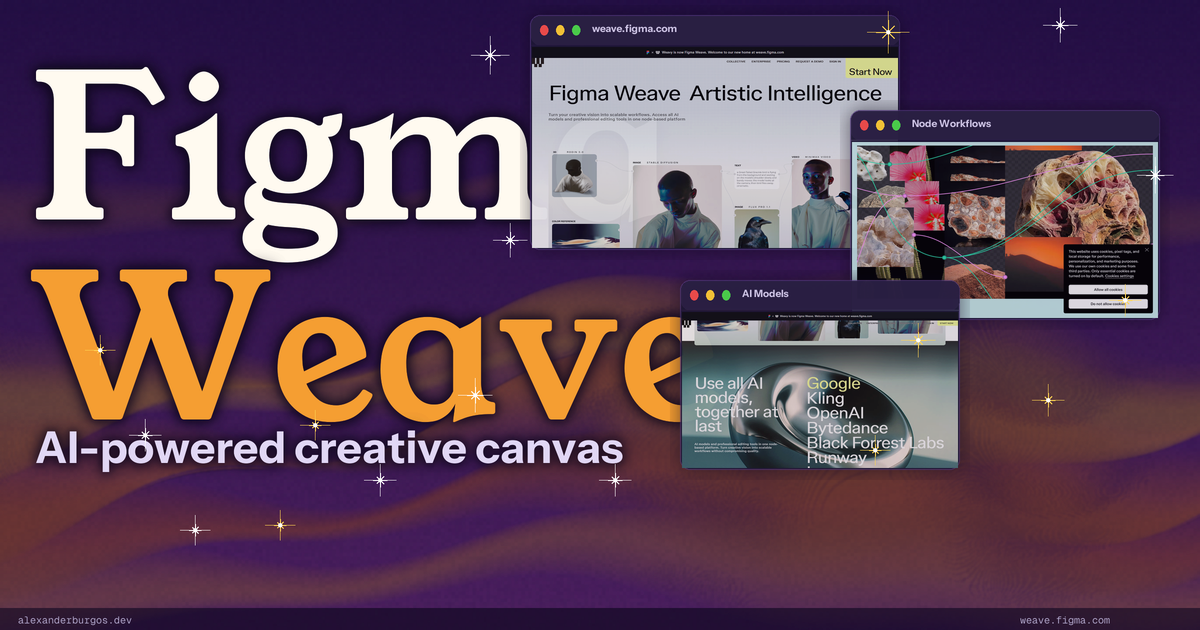
Let's be honest -- if you work with AI-generated images or video in 2026, you probably have at least four subscriptions running at the same time. Midjourney for aesthetics. Runway for video. Flux for speed. Maybe Ideogram for text-heavy graphics. Each tool has its own interface, its own credits, its own quirks. You end up with fifteen browser tabs and a spreadsheet to track which prompt went where.
Sound familiar?
Figma clearly thinks this is a problem worth solving. Their answer is Figma Weave -- a standalone AI platform that puts every major generative model on a single canvas and lets you wire them together like nodes in a visual programming environment. I have been exploring it for a while now, and I have thoughts. Let me walk you through what it is, how it works, and whether it actually delivers.
What Is Figma Weave?
Figma Weave is an AI-native, node-based creative platform for generating and editing images, video, and other media. It lives at weave.figma.com as a completely separate product from Figma Design. Think of it as Figma's answer to the fragmented AI tools landscape -- one place where you can access multiple AI models, chain them together, and build reproducible creative workflows.
The backstory is interesting. In October 2025, Figma acquired an Israeli startup called Weavy (about 20 employees) for over $200 million. That acquisition became the foundation for what we now see as Figma Weave. It is not a small side feature -- this is a full standalone product with its own billing, its own community, and its own pricing tiers.
How It Works -- The Node-Based Approach
Here's the thing that sets Weave apart from most AI image tools: it uses a node-based workflow. If you have ever used Blender's shader editor or Unreal Engine's Blueprints, you will feel right at home. Every step in your creative process -- the prompt, the model selection, the post-processing -- is a visible node on the canvas. You connect them with wires, and data flows from left to right.
Why does this matter? Because every workflow is documented, reproducible, and branchable. You can look at a node graph and understand exactly what happened at each step. You can duplicate it, swap out a model, tweak a parameter, and compare results side by side. No more "I got this amazing result but I have no idea what settings I used".
Figma highlights five official workflows to get you started:
- Multi-aspect ratio generation -- take one image and automatically create mobile, desktop, and social media variants
- Style comparison -- run the same prompt through multiple models side by side to see which gives the best result
- Image-to-video pipeline -- generate a still image, then feed it into a video model in one seamless flow
- Distortion/effect comparison -- apply different effects and compare them visually
- Brand-consistent asset generation -- lock in your brand style and generate assets that stay on-brand every time
The AI Models
This is where Weave really flexes. Instead of building their own AI model (like Adobe did with Firefly), Figma took the aggregator approach. Weave gives you access to a huge roster of models, all from one interface:
- Flux -- fast, versatile image generation
- Sora -- OpenAI's video generation model
- Veo -- Google's video model
- Ideogram -- excellent at text rendering in images
- Kling -- video generation with strong motion
- Runway -- industry-standard video AI
- Luma -- 3D and video generation
- Wan -- image and video generation
- Grok -- xAI's model
- Recraft -- vector and design-focused generation
- Bria -- commercially safe, ethically trained models
The beauty of this approach is that you are not locked into one model's strengths and weaknesses. Need photorealistic portraits? Use Flux. Need stylised illustrations with readable text? Use Ideogram. Need video? Pick from Sora, Veo, Runway, Kling, or Luma depending on the look you want. And you can chain them -- generate an image with one model, then feed it into another for video, then post-process with a third.
Key Features -- App Mode and Professional Tools
Beyond the model selection, Weave packs in a solid set of professional editing tools: blur, invert, crop, mask, inpaint, outpaint, upscale, relight, and Z-depth. These are the kind of tools you would normally need Photoshop or a dedicated editor for. Having them right there in the same canvas where you generate content means fewer round trips between apps.
But my favourite feature might be App Mode. Here's the problem with node-based tools -- they are powerful but intimidating. Not everyone on your team wants to look at a spaghetti graph of connected nodes. App Mode lets you convert a complex workflow into a simplified UI with just the inputs your teammates need. Think of it as building a custom mini-app from your workflow. Your art director sets up the nodes, and the marketing team gets a clean form with a "Generate" button.
There are also 20+ community templates available on figma.com/community/weave, plus a curated Artist Collective of leading AI creators sharing their workflows. So even if you are just getting started, you do not have to build everything from scratch.
Figma Weave vs Figma Make -- What Is the Difference?
This confused me at first, so let me clear it up. Figma now has two AI-powered products with similar-sounding names, but they do very different things:
- Figma Make -- this is prompt-to-UI prototyping that lives inside Figma Design. You describe a screen, and Make generates a Figma layout with layers, components, and auto-layout. It is aimed at product designers who want to speed up their UI work.
- Figma Weave -- this is prompt-to-media generation that lives at its own URL (weave.figma.com). It generates images, videos, and creative assets using external AI models. It is aimed at creative directors, VFX artists, and brand teams.
They have different billing, different target audiences, and different workflows. Make is about designing interfaces. Weave is about generating creative media. Do not confuse them -- I certainly did the first time.
Pricing Breakdown
Weave uses a credit-based pricing system. Different models consume different amounts of credits per generation, so your mileage will vary depending on which models you use most. Here is the breakdown:
- Free -- $0/month, 150 credits, up to 5 workflows. Enough to try it out, not enough to do real work.
- Starter -- $19/month, 1,500 credits. Good for personal projects and light experimentation.
- Professional -- $36/month, 4,000 credits (unused credits roll over up to 3x). The sweet spot for freelancers and solo creators.
- Team -- $48/user/month, 4,500 credits per user. For agencies and studios collaborating on projects.
- Enterprise -- custom pricing. The usual enterprise story.
You can also buy top-ups at $10 per 1,000-1,200 credits if you run out mid-month.
The good news is that if you are currently paying for Midjourney ($10-30/month), Runway ($12-76/month), and a Flux API separately, consolidating into Weave's Professional plan at $36/month could actually save you money. The bad news? Credits disappear fast when you are experimenting, and experimentation is kind of the whole point of a creative tool.
My Take -- Honest UX Engineer Opinion
I have been watching the AI creative tools space closely, and Figma Weave is genuinely interesting. Chase Jarvis called it "the most transformational tool since Photoshop" -- that might be a stretch, but I understand the sentiment. Here is what I think after using it:
What I Like
- Multi-model access in one place -- this is the killer feature. Instead of jumping between tools, you pick the best model for each task. One subscription, many engines.
- Node-based workflows are transparent -- you can see exactly what happened, reproduce it, and iterate on it. No more "prompt and pray".
- App Mode is brilliant -- the ability to turn a complex workflow into a simple UI for non-technical teammates solves a real collaboration problem.
- Community templates -- 20+ ready-made workflows mean you can learn by example instead of starting from zero.
- Professional editing tools built in -- inpaint, outpaint, upscale, relight, and more, without leaving the canvas.
What Needs Work
- Steep learning curve -- if you have never worked with node-based tools, prepare to spend some time learning. It is not as simple as typing a prompt into Midjourney.
- Credit system penalises experimentation -- creative work is inherently iterative. Watching your credits drain while you explore different approaches creates anxiety, not creativity.
- Separate billing from Figma -- Weave is not included in your Figma Design subscription. It is a separate product with separate pricing. For teams already paying for Figma, this adds another line item.
- No full integration with Figma Design yet -- you cannot drag a Weave-generated asset straight into your Figma file (at least not seamlessly). The two products still feel disconnected.
- ComfyUI exists -- if you are technical and do not mind running things locally, ComfyUI gives you similar node-based AI workflows for free. Weave's advantage is polish, team features, and not having to manage your own infrastructure.
Compared to the alternatives: Midjourney is still the king of aesthetics if all you need is beautiful images. Adobe Firefly keeps you inside Adobe's walled garden. ComfyUI is free and open-source but requires technical setup. Figma Weave positions itself as the orchestrator -- it does not try to beat any single model, it gives you access to all of them and lets you decide.
Wrapping Up
Figma Weave is not perfect, but it is solving a real problem. The AI creative tools space is fragmented, and having one platform that aggregates multiple models, provides professional editing tools, and enables reproducible workflows is genuinely valuable. Whether it is worth the subscription depends on how many AI tools you currently juggle and how much you value a unified workspace.
If you are already deep in the Figma ecosystem and work with AI-generated media regularly, Weave is absolutely worth trying -- the free tier gives you 150 credits to see if the node-based approach clicks for you. If you are happy with Midjourney and do not need video or complex workflows, you might not need it yet.
Either way, it is exciting to see Figma pushing into this space. The multi-model, node-based approach feels like the right direction for professional creative work.
Happy designing!
If you want to go deeper and learn how to build real, production-ready CSS design systems step by step, check out my full course here: CSS Design Systems Course
If you found this helpful, I'd love to connect! Follow me on Twitter/X @alexandersstudi or LinkedIn for more CSS and design system tips.