Let's be honest — the handoff between design and code is broken. We've all spent far too many hours squinting at Figma files, manually copying hex codes, and trying to guess the padding between two nested frames. But what if your AI coding assistant actually understood your design files as well as it understands your codebase?
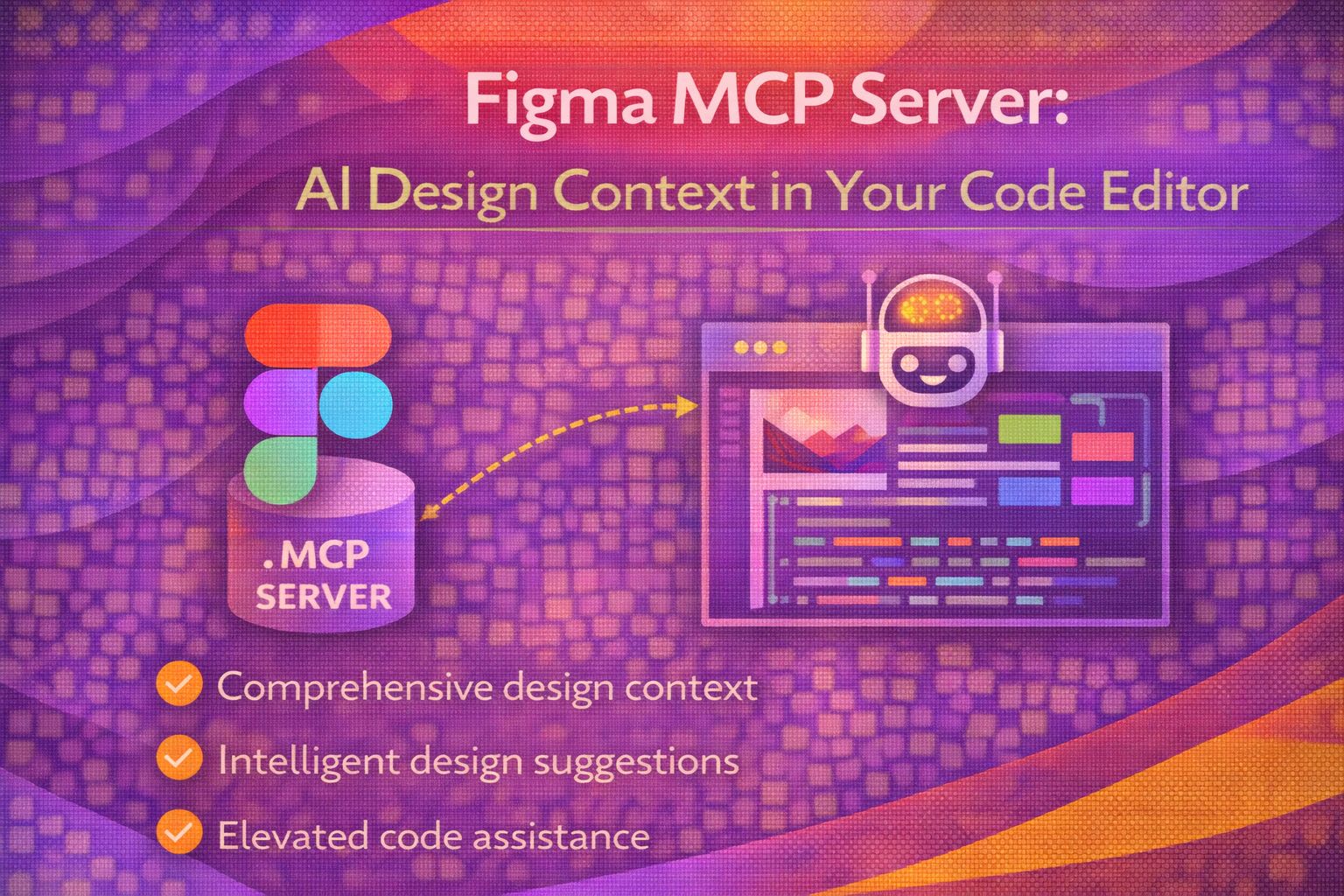
I'm genuinely excited about this one. Figma recently dropped their MCP (Model Context Protocol) server, and it's a total game-changer for UX Engineers. It's not just a plugin; it's a way to feed live design context directly into AI-powered editors like Cursor, VS Code, or Claude Code. It's like giving your LLM a pair of eyes that can see your Figma canvas.
What on earth is an MCP Server?
Before we dive into the code, let's talk about the 'why'. MCP is an open standard that allows AI models to connect to external data sources. In our case, the Figma MCP server acts as a bridge. Instead of you copy-pasting screenshots or CSS snippets into a chat window, the AI can query Figma directly to ask, "What's the border-radius on this button?" or "Show me the layout for the mobile navigation."
Here's the thing: this isn't a browser feature. You won't find it in MDN or CanIUse. It's a protocol level integration. You can run it locally (connected to your Figma Desktop app) or via a remote endpoint. Personally, I've found the remote setup to be the smoothest for tools like Claude Code.
Setting Up the Remote Figma MCP
If you're using an editor that supports MCP (like Cursor or VS Code with the right extensions), you'll need to point it to Figma's remote server. This is the easiest way to get started without messing around with local node environments.
{
  "mcpServers": {
    "figma": {
      "url": "https://mcp.figma.com/mcp"
    }
  }
}
For the terminal warriors out there using Claude Code, you can add it directly via the CLI. I've been using this lately, and it feels like magic when the terminal starts describing my design layers to me.
claude mcp add --transport http figma-remote-mcp https://mcp.figma.com/mcpThe UX of AI-Driven Design
The cool bit? It's not just about reading properties. You can actually prompt the AI to perform design tasks. In my experience, the 'generate_figma_design' tool is where the real power lies. You can tell the AI to 'Capture this local UI and create a Figma file from it,' and it will attempt to bridge that gap.
Watch Out for These Gotchas
It's not all sunshine and rainbows yet — we are in beta territory. One major thing to remember: if you're using the Desktop MCP, it won't work with the browser version of Figma. You must have the Figma Desktop app open and running.
- 404 Errors: If you see SSE or asset errors, try clearing your Figma app cache and restarting. It's a classic beta bug.
- Auth Issues: Ensure your Figma account has the right permissions (usually requires a Dev or Full seat for certain features).
- Connection: If Claude fails to connect, try disconnecting old connectors and running the add command again.
Pro Move: Prompting with Context
Once you're set up, don't just ask for CSS. Ask for architectural help. Try a prompt like this next time you're in Cursor:
/* Prompt Example */
"Look at the 'Button' component in my Figma file.
Generate a React component using Tailwind CSS that matches
the hover states and design tokens defined there."
This shifts the AI from 'guessing' to 'implementing'. It's a subtle difference, but the quality of code you get back is significantly higher because the AI is looking at the source of truth.
Wrapping Up
The Figma MCP server is a massive step toward a more unified development workflow. By bringing design context directly into our editors, we're reducing the friction that usually leads to 'design debt' and inconsistent UIs.
- MCP bridges the gap between Figma design data and AI-powered code editors.
- Remote setup is the quickest way to get started with tools like Claude and Cursor.
- Always keep the Figma Desktop app open if you're using local endpoints to avoid connection errors.
I'd highly recommend giving this a spin on your next component build. It might feel a bit 'bleeding edge' right now, but this is clearly where the future of UX Engineering is headed.
If you want to go deeper and learn how to build real, production-ready CSS design systems step by step, check out my full course here: CSS Design Systems Course
Got questions or want to share how you're using this? Drop me a message on LinkedIn - I always enjoy chatting about this stuff!