Let's be honest — performance is usually a battle of trade-offs, but every now and then, a CSS property comes along that feels like a cheat code. If you've ever wrestled with long, content-heavy pages that feel sluggish during the initial paint, you're going to love this.
What is content-visibility?
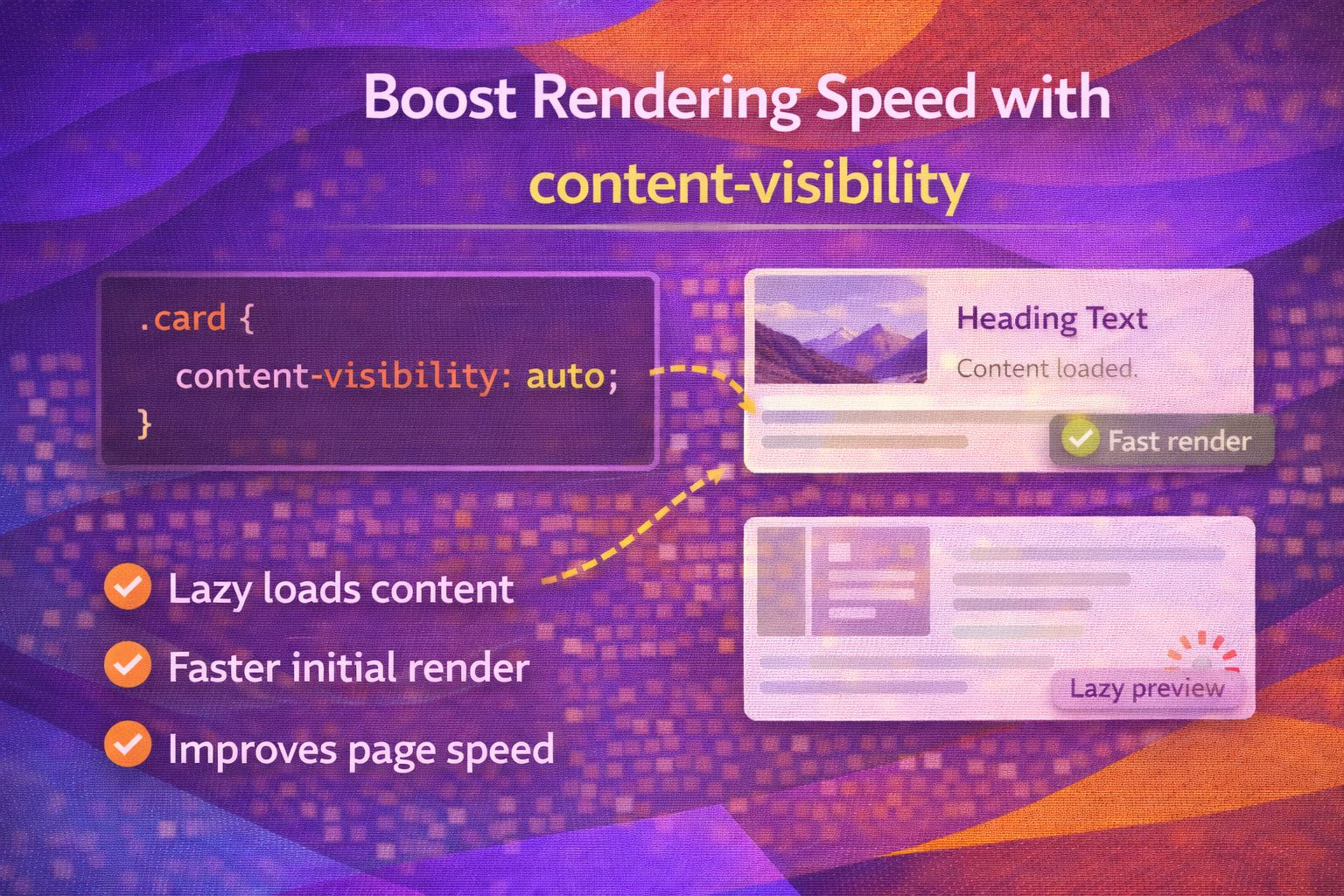
At its core, this property tells the browser: "Don't bother rendering this element until the user actually needs to see it." Here is the basic syntax you'll be using most of the time:
/* The most common use case for performance */
.card-section {
  content-visibility: auto;
}
When set to auto, the browser skips the layout and painting of the element if it's currently off-screen, which saves a massive amount of CPU work during the initial load.
/* Other possible values */
.hidden-element {
  content-visibility: hidden; /* Skips rendering entirely, even if on-screen */
}

.normal-element {
  content-visibility: visible; /* Default behaviour */
}The Secret Sauce: contain-intrinsic-size
Here's the thing: if you use auto alone, the browser doesn't know how tall the element is until it renders, which causes the scrollbar to jump around like crazy. To fix this, we use contain-intrinsic-size to provide a placeholder height.
/* Giving the browser a hint about the element's size */
.blog-post-section {
  content-visibility: auto;
  contain-intrinsic-size: 1000px; /* Estimated height */
}
You can also get more specific with both width and height if your layout requires it, ensuring the layout remains stable as the user scrolls.
/* Specificity for complex layouts */
.gallery-grid {
  content-visibility: auto;
  /* Format: width height */
  contain-intrinsic-size: 100% 500px;
}Real-World Implementation with Fallbacks
I'm a big fan of progressive enhancement, so I always recommend wrapping these modern properties in a feature query to ensure older browsers don't get confused.
/* Production-ready rendering optimisation */
@supports (content-visibility: auto) {
  .heavy-component {
    content-visibility: auto;
    contain-intrinsic-size: 0 800px; /* 0 width, 800px height estimate */
  }
}
This approach ensures that Chromium, Firefox, and Safari users get the performance boost while others simply render the page as they always have.
/* Example for a long list of comments */
.comment-thread {
  content-visibility: auto;
  contain-intrinsic-size: auto 150px; /* 'auto' allows it to remember its size once rendered */
}Detecting State Changes with JavaScript
The cool bit? You can actually listen for when an element enters or leaves the rendered state using the contentvisibilityautostatechange event. This is brilliant for pausing animations or analytics.
// JavaScript: Handling visibility changes
const element = document.querySelector('.heavy-component');

element.addEventListener('contentvisibilityautostatechange', (event) => {
  if (event.skipped) {
    console.log('Element is now invisible and rendering is skipped.');
    // Stop heavy JS tasks here
  } else {
    console.log('Element is now being rendered.');
    // Resume animations or logic
  }
});
This event is specifically designed for the auto value and gives you fine-grained control over your component's lifecycle.
/* CSS: You can also style based on visibility if needed */
.heavy-component:not(:defined) {
  /* Optional: styles for before the component is initialised */
}Browser Support
As of 2024, support is fantastic. It's part of CSS Baseline, meaning it's safe for general production use across all major engines.
- Chromium (Chrome/Edge): 94+
- Firefox: 100+
- Safari: 15.4+
- Baseline 2024: Fully Supported
Wrapping Up
Implementing content-visibility is one of the highest-impact, lowest-effort performance wins you can find in modern CSS. It effectively gives you virtual scrolling capabilities without the complex JavaScript overhead.
- Use content-visibility: auto to skip rendering for off-screen elements.
- Always pair it with contain-intrinsic-size to prevent layout shifts and scrollbar jumping.
- Remember that auto keeps content in the accessibility tree, while hidden removes it.
Go ahead and try adding this to your long-form pages or complex dashboards. You'll see the difference in your Lighthouse scores immediately!
If you want to go deeper and learn how to build real, production-ready CSS design systems step by step, check out my full course here: CSS Design Systems Course
Got questions or want to share how you're using this? Drop me a message on LinkedIn - I always enjoy chatting about this stuff!