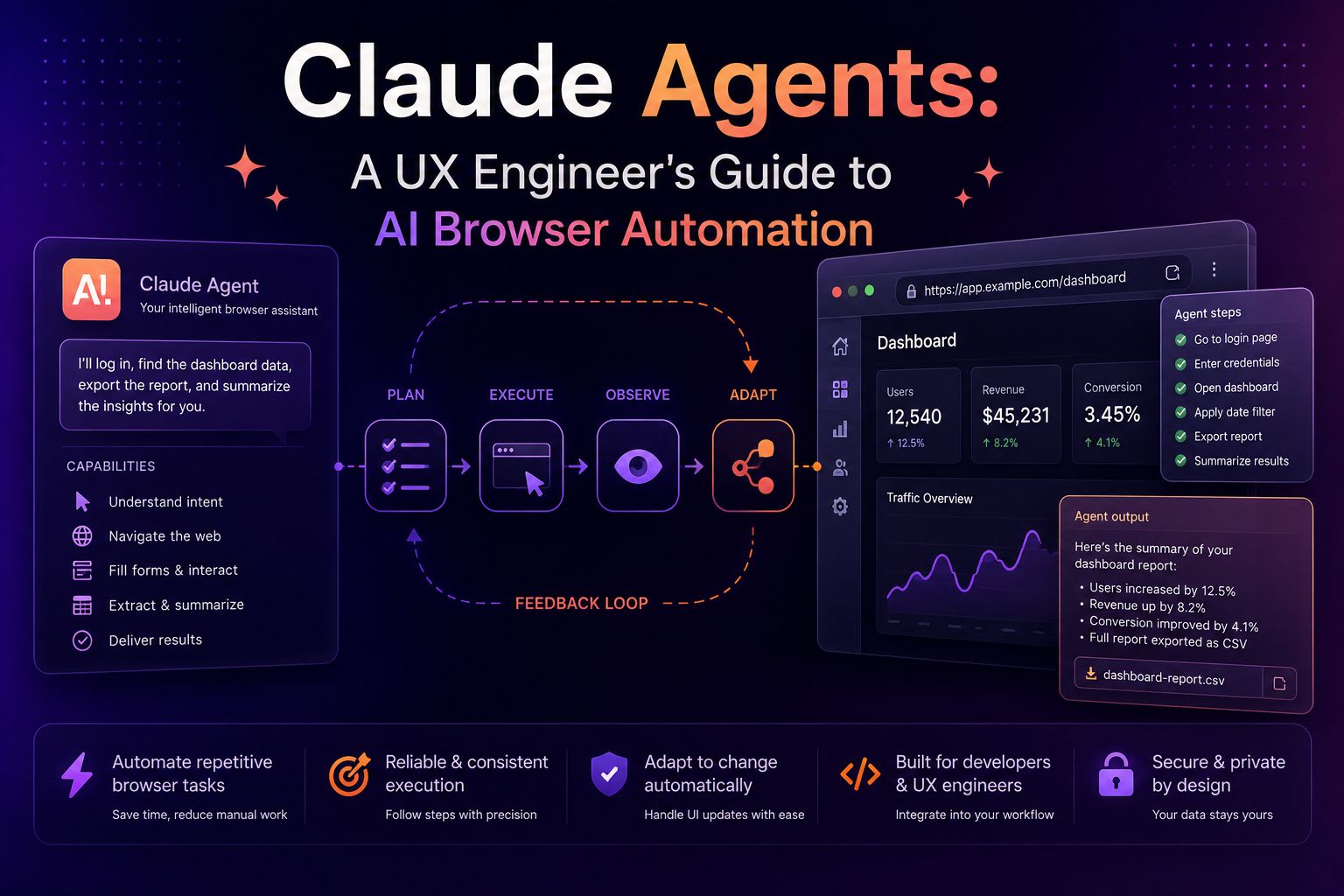
Okay, I'm genuinely excited about this one. If you've been following the AI space lately, you'll know that the conversation has shifted from 'chatbots that write poems' to 'agents that actually do things'. For us UX Engineers, this is where it gets really interesting. We're moving away from just asking Claude to write a React component and towards letting it actually interact with the browser to test, audit, and validate our designs.
Here's the thing: we spend a massive amount of time on repetitive manual tasks—checking if a modal traps focus, verifying form validation across different viewports, or ensuring our design system tokens are applied correctly. What if we could treat the browser as an API that an AI agent can navigate? That's exactly what tools like the Agent Browser CLI and Claude's browser integrations are starting to allow.
Understanding the Agent-Browser Workflow
Before we dive into the code, let's look at the mental model. Traditional automation (like Playwright or Cypress) is deterministic; you tell the computer exactly which selector to click. AI agents are probabilistic. You give them a goal, and they 'look' at the DOM, identify the elements, and decide on the next action based on the visual or semantic context.
In my experience, this is a game changer for accessibility testing. Instead of just running a static scan, an agent can actually 'try' to navigate a complex flow using only the accessibility tree, giving us a much more realistic view of the user experience for screen reader users.
Setting Up Your Agent Toolkit
To get started with this as a UX Engineer, you'll likely want to use the `agent-browser` CLI. It's a fantastic wrapper that lets you control a Chromium instance through a terminal or an AI script. Let's look at how we can set this up and perform a basic UI audit.
# First, install the agent-browser CLI globally
npm install -g agent-browser

# Open a website in a headed browser for visual tracking
agent-browser open https://your-design-system.com --headed

# Take a snapshot to see how the agent 'sees' your UI
agent-browser snapshot --json
The JSON output from that snapshot is pure gold. It provides a list of interactive elements with unique references (like `@e1`, `@e2`). This is what Claude uses to understand your layout. Honestly, seeing your website reduced to a list of semantic interactive points is a great exercise in itself for checking your HTML structure.
Practical Implementation: The Accessibility Audit
Let's say you've built a new checkout flow and you want to ensure it's keyboard navigable. You can script the agent to perform specific actions. The cool bit? You don't need to find the CSS classes for the buttons; you just tell the agent what to do.
// Conceptual script for an automated UX flow test
// 1. Navigate to the product page
agent-browser open https://shop.example.com/product/123

// 2. Identify and click the 'Add to Cart' button
// The agent identifies the button via its accessible name
agent-browser click @e5

// 3. Fill out the shipping form
agent-browser fill @e12 "Alexander Burgos"
agent-browser fill @e13 "alex@example.com"

// 4. Submit and verify the 'Success' message exists in the DOM
agent-browser snapshot --json
If the agent fails to find the 'Add to Cart' button, it's a massive red flag that your button isn't labelled correctly or is hidden from the accessibility tree. Trust me on this one—using an AI agent to 'smoke test' your components is far more efficient than writing 50 lines of brittle Playwright selectors.
UX Comparison: Manual vs. Agent-Led Testing
Best Practices for UX Engineers
While this tech is incredible, it's still in the early stages. If you're going to start integrating Claude agents into your workflow, keep these points in mind:
- Focus on Semantics: Agents rely on the accessibility tree. If your HTML isn't semantic, the agent will get lost. Use this as a forcing function for better code.
- Headed Mode for Debugging: When running scripts, use the `--headed` flag. It's much easier to spot where an agent is getting stuck when you can see the cursor moving.
- Permissions Matter: Remember that the Claude extension requires specific permissions to interact with pages. Don't forget to approve these when testing internal staging environments.
- Combine with Design Tokens: Use agents to verify that the computed styles of your elements match your design system's JSON tokens.
Wrapping Up
The arrival of browser-capable agents like Claude is shifting our role as UX Engineers. We're moving from being 'builders of static views' to 'orchestrators of intelligent experiences'. By leveraging tools like the Agent Browser CLI, we can automate the boring bits of QA and focus on what really matters—crafting beautiful, accessible, and performant user interfaces.
- AI agents interact with the DOM via reasoning, not just hardcoded selectors, making tests more resilient.
- The Agent Browser CLI is a powerful tool for UX Engineers to script browser interactions using natural language concepts.
- Semantic HTML is more important than ever, as it serves as the 'map' for AI agents to navigate your UI.
If you want to go deeper and learn how to build real, production-ready CSS design systems step by step, check out my full course here: CSS Design Systems Course
Got questions or want to share how you're using this? Drop me a message on LinkedIn - I always enjoy chatting about this stuff!