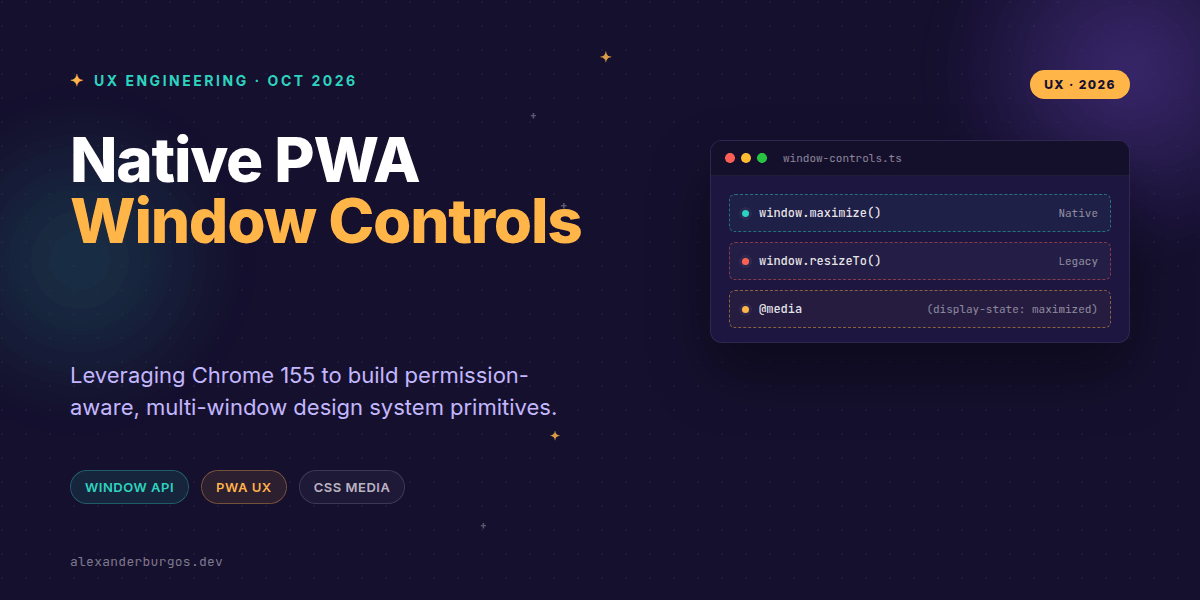
Right, let's talk about the gap between web apps and native software. For years, we've been trying to make PWAs feel like "real" desktop applications, but we've always hit a wall when it came to the window itself. We could style the content, but we couldn't touch the chrome.
That changed on October 6, 2026, with the release of Chrome 155. We finally have a stable Window Management API that gives us programmatic control over maximizing, minimizing, and restoring windows, alongside granular resizability controls. No more brittle workarounds; we're talking about native OS-level transitions.
The End of Brittle Window Workarounds
In the past, if you wanted to control a window's size, you were stuck with window.moveTo() or window.resizeTo(). These were imperative, often ignored by modern browsers for security reasons, and they didn't respect the user's OS settings for "maximized" states. They were hacks, plain and simple.
Chrome 155 introduces window.maximize(), window.minimize(), and window.restore(). These aren't just suggestions; they are asynchronous requests to the underlying operating system. When you call await window.maximize(), the browser handles the heavy lifting of the transition, returning a promise that resolves once the state change is complete.
Building a Permission-Aware Primitive
Before you start adding "Minimize" buttons to your design system, we need to talk about permissions. These new capabilities are locked behind the window-management permission. You can't just hijack a user's window; they have to have the PWA installed, and the app needs the right clearance.
I've found it's best to wrap these calls in a capability check. Here's a pattern I've been using to ensure the UI only attempts these operations when it's actually allowed to:
async function requestWindowPermission() {
  const status = await navigator.permissions.query({
    name: "window-management"
  });

  if (status.state === "granted") return true;
  return status.state === "prompt";
}

export async function setWindowMode(mode) {
  if (!(await requestWindowPermission())) return false;

  const operation = {
    maximize: window.maximize,
    minimize: window.minimize,
    restore: window.restore
  }[mode];

  if (!operation) throw new TypeError("Unsupported window mode");

  try {
    await operation.call(window);
    return true;
  } catch (err) {
    console.error("Window transition failed", err);
    return false;
  }
}
CSS Media Features: The Game Changer
This is where it gets really exciting for design system authors. Chrome 155 isn't just giving us JavaScript methods; it's giving us CSS media features. We can now react to the window state purely in our stylesheets using display-state and resizable.
Imagine a complex dashboard that needs to hide certain heavy data visualisations when the window is minimized to save on paint cycles, or a custom sidebar that should only appear when the window is maximized. You can now do this without a single window.addEventListener('resize', ...).
.window-shell {
  container-type: inline-size;
  transition: padding 0.3s ease;
}

/* React to the window state */
@media (display-state: maximized) {
  .window-shell {
    padding: 0;
    border-radius: 0;
  }
}

@media (display-state: minimized) {
  .window-shell > * {
    visibility: hidden;
  }
}

/* Hide custom drag handles if the window isn't resizable */
@media (resizable: false) {
  .custom-resize-handle {
    display: none;
  }
}
Managing Resizability Programmatically
Have you ever built a tool, like a small calculator or a music mini-player, where you wanted to lock the aspect ratio or prevent the user from stretching the UI into oblivion? Chrome 155 introduces window.setResizable(boolean).
By calling await window.setResizable(false), you disable the OS-level edge dragging. This is a powerful UX tool, but use it sparingly—users generally hate it when you take away their control. I recommend only using this for specific "utility" modes of your PWA.
Common Pitfalls to Avoid
- Don't confuse with Window Controls Overlay: The overlay (WCO) lets you put content in the title bar. The Window Management API lets you control the window state. They work great together, but they are separate APIs.
- Await your promises: These methods are asynchronous. If you try to run logic immediately after calling
minimize(), the window might not have finished transitioning yet. - Permissions are mandatory: If the user hasn't granted
window-management, these calls will fail. Always check the permission state first. - PWA context only: These features are designed for installed desktop PWAs. They won't work in a standard browser tab for security reasons.
Wrapping Up
- Use
maximize(),minimize(), andrestore()for native window state transitions instead of legacy resize hacks. - Leverage the
display-stateCSS media feature to adapt your UI to the window's physical state. - Always wrap window operations in permission checks to ensure a graceful fallback for users who haven't granted access.
I encourage you to experiment with these in your next PWA project. The ability to treat the browser window as a first-class citizen of the OS opens up so many possibilities for high-end UX engineering.
If you want to go deeper and learn how to build real, production-ready CSS design systems step by step, check out my full course here: CSS Design Systems Course
If you want the long-form version of this with 23 chapters and runnable code, Ship Your Design System on Amazon is the handbook.
Let's connect! You can find me sharing more CSS tips on Twitter or catch my professional updates on LinkedIn.