Okay, I'm genuinely excited about this. For years, those of us building accessible component libraries have faced a rather ironic problem during our daily development loop.
We spend hours ensuring our design systems are fully operable via the keyboard, checking focus rings, and mapping out logical tab indices. Yet, the moment we open our browser tools to inspect those very states, we are forced to drop the keyboard and grab a mouse.
If you wanted to trigger an inspection badge or toggle a specific layout overlay in the DOM tree, you had to point and click. It was a jarring context switch that slowed down the debugging process.
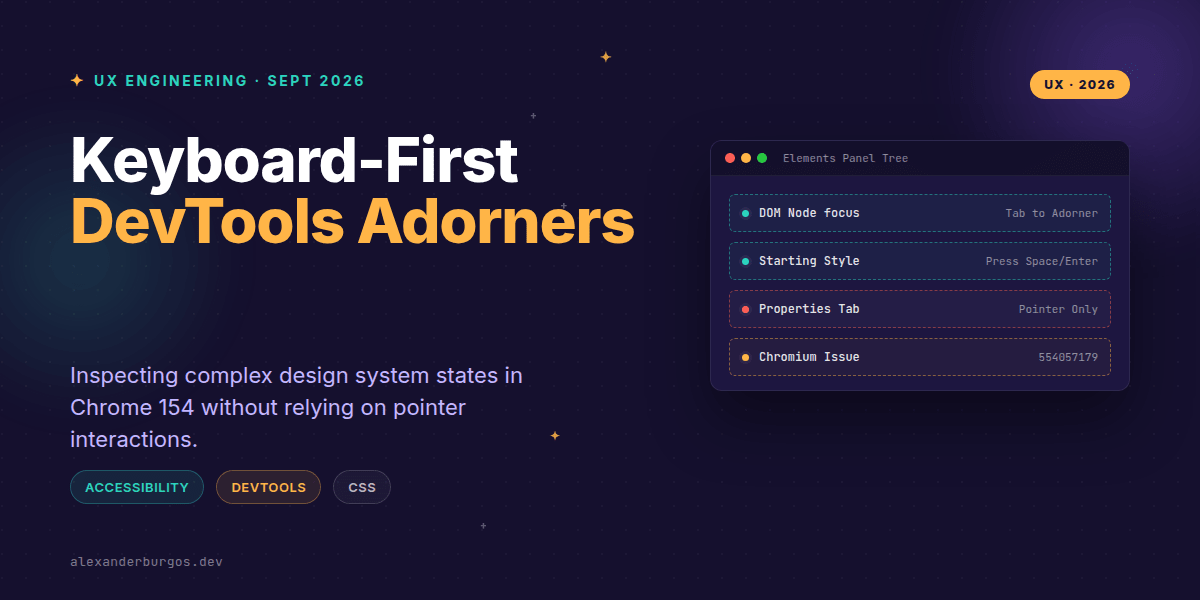
Thankfully, the web tooling ecosystem is catching up to our accessibility standards. With the arrival of Chrome 154, the DevTools team has quietly introduced a feature that fundamentally alters our debugging workflows: keyboard-accessible interactive adorners.
The Big Shift in Chrome 154
Announced as part of the October 2026 DevTools cycle, this update tackles a long-standing accessibility gap inside the Elements panel. Interactive adorners—those tiny inline badges that appear next to DOM elements to flag layouts like Grid, Flex, or Scroll Snap—are no longer pointer-only targets.
Under Chromium issue 554057179, four major interactive adorners have been upgraded to support full keyboard navigation. These specific controls are:
- View Source: For leaping directly to the source code file.
- Starting Style: For inspecting entry animation states.
- Scroll Snap: For visualising layout snapping boundaries.
- Reveal: For locating hidden or related DOM nodes.
These adorners can now seamlessly receive keyboard focus within the DOM tree. Once you highlight them, you can activate their respective panels or overlays using standard Enter or Space keystrokes.
Why This Matters for Design System Engineering
When you are building components meant to behave predictably across a massive organisation, context switches are the enemy. Consider a complex component like an animated modal or a multi-card carousel.
Previously, if you wanted to test how a carousel behaves when snapping to a grid, you would tab to the component on the page, verify the focus state, and then reach for your mouse. You would have to carefully hover over the tiny 'scroll-snap' badge in DevTools to toggle the visual debugging lines.
With Chrome 154, that friction disappears entirely. You can keep your hands on the keyboard, navigate straight through the DOM tree structure, tab directly onto the Scroll Snap or Starting Style adorner, and open it instantly.
The Keyboard-First Debugging Workflow
Let's map out how this actually looks in practice when you are working inside the Elements panel. The DevTools keyboard ecosystem is surprisingly robust when you combine these new capabilities with existing shortcuts.
First, you can jump between primary panels using Ctrl+] or Cmd+] (and Ctrl+[ or Cmd+[ to go backward). Once you are inside the Elements panel and focusing on a component node in the DOM tree, the new magic happens.
Pressing Tab now moves your focus sequentially through the inline interactive adorners attached to that specific node. When your focus ring hits the desired adorner, a swift tap of Space or Enter fires its action.
From there, you can continue tabbing directly into the Styles pane. Inside the Styles pane, you can use the arrow keys to cycle through CSS rules and individual properties. Pressing Enter on a property opens it up for detailed, inline editing.
Inspecting Complex CSS States
To truly appreciate why this focus shift helps, we need to look at the types of modern CSS properties these adorners represent. Let's start with entry animations using @starting-style.
.dialog {
  opacity: 1;
  transition: opacity 200ms;
}

@starting-style {
  .dialog {
    opacity: 0;
  }
}
Chrome 143 originally introduced the starting-style adorner, allowing engineers to toggle and force the element's initial render state. However, that control was buried behind a pointer interaction.
In Chrome 154, you can tab directly to that Starting Style adorner, press Enter, and immediately inspect the associated @starting-style block inside your Styles pane without breaking your keyboard flow.
The same efficiency gain applies to layout debugging, such as complex scroll-snapping carousels:
.carousel {
  display: flex;
  overflow-x: auto;
  scroll-snap-type: x mandatory;
}

.card {
  scroll-snap-align: start;
}
Toggling the Scroll Snap adorner via the keyboard instantly exposes the snapping state alignment directly within your layout workflow, making it incredibly fast to audit compound components.
Crucial Gotchas and Misconceptions
While this is a massive step forward for engineering velocity, we must be careful not to misunderstand what this feature does—and what it doesn't do.
First, remember that adorners are purely DevTools UI components. They are not web-platform APIs. Activating an adorner changes how DevTools visualises an element, but it does not alter the actual DOM, the accessibility tree, or the production runtime behavior of your web application.
Second, do not confuse DevTools focus with page focus. When you tab onto a Starting Style or Scroll Snap adorner, you are navigating the browser's developer interface. The actual component on your rendered page has not received focus.
To illustrate, consider this standard keyboard focus indicator styling:
:focus-visible {
  outline: 2px solid Highlight;
  outline-offset: 2px;
}
This CSS determines how your page controls behave when a user interacts with them. DevTools' internal keyboard accessibility is entirely separate; it will not magically fix or test the focus states of your actual UI components.
We also have to acknowledge that not every DevTools section is keyboard accessible yet. The official navigation documentation explicitly notes that the DOM Breakpoints and Properties tabs remain mouse-bound for now.
Lastly, browser support for this specific workflow upgrade is narrow by definition. This is a Chrome DevTools capability tied directly to the Chrome 154 release cycle. You won't find these exact keyboard paths or adorners exposed by Firefox, Safari, or custom page scripts.
Wrapping Up
- Chrome 154 introduces keyboard-focusable interactive adorners for View Source, Starting Style, Scroll Snap, and Reveal.
- Engineers can now use
SpaceorEnterto activate debugging overlays, completely eliminating the need for mouse-driven hit testing during DOM inspections. - Remember that DevTools accessibility updates improve your authoring flow, but they do not replace comprehensive testing of your page's actual accessibility tree.
I highly encourage you to fire up the latest Chrome build, ditch your mouse for an hour, and experiment with navigating the Elements panel using these updated shortcuts. It is a fantastic way to streamline your UI debugging habits.
If you want to go deeper and learn how to build real, production-ready CSS design systems step by step, check out my full course here: CSS Design Systems Course
I cover this and the other twenty-seven CSS shifts of 2026 in Modern CSS 2026 on Amazon, my catch-up book for people who learned CSS five years ago.
For more thoughts on CSS architecture, design systems, and modern UX engineering workflows, let's connect over on Twitter or follow my regular updates on LinkedIn.