Ever wondered why some screen reader users find data tables absolutely nightmarish to navigate? Here's the thing: most of the time, it's because we've focused on the visual styling and completely forgotten about the underlying semantic relationships.
I've seen so many developers try to 'fix' tables with complex ARIA when simple, semantic HTML would have done a much better job. Let's look at how to build tables that actually speak to your users.
The Foundation: Captions and Groups
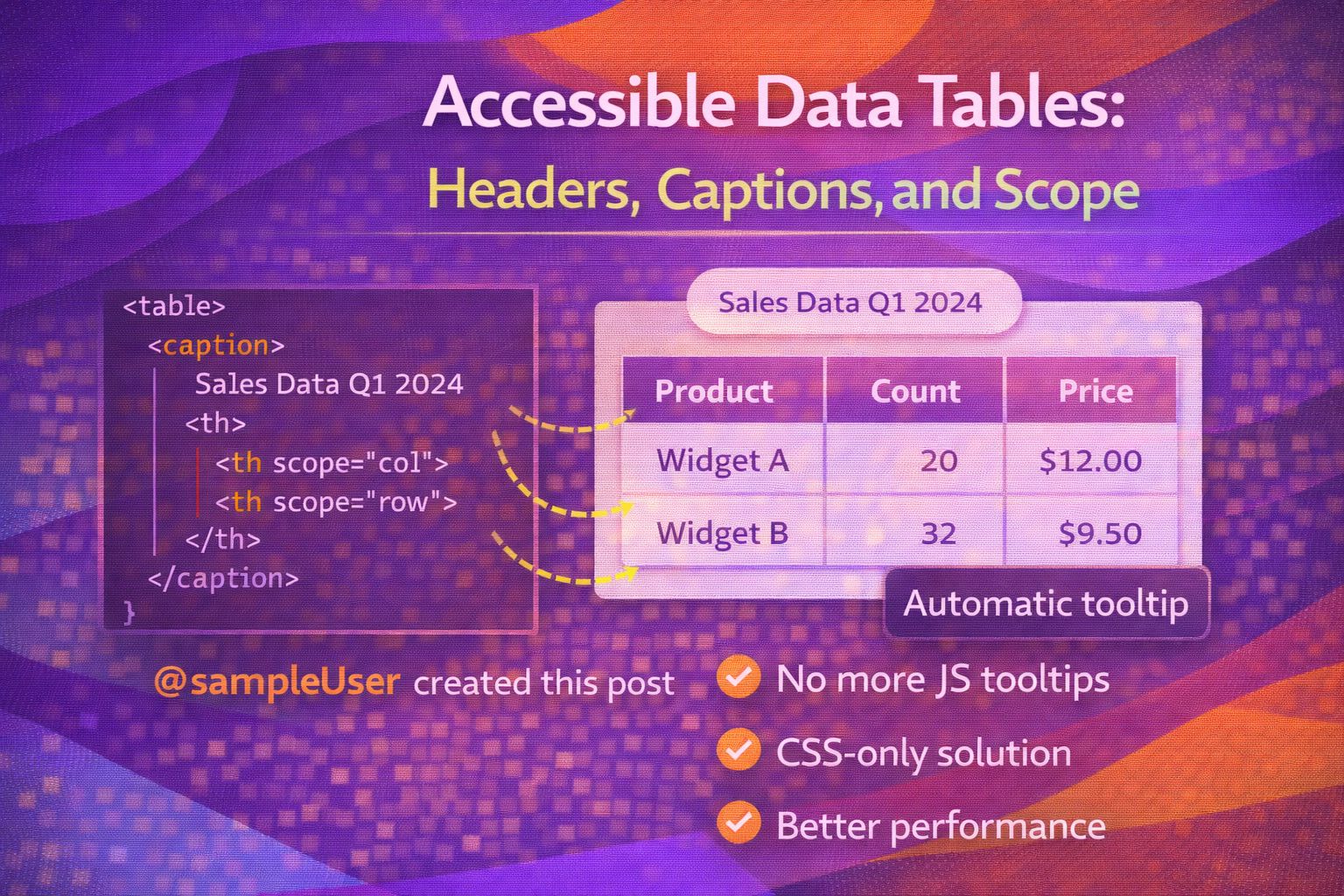
A table without a caption is like a book without a title; the screen reader enters the element but the user has no context for what the data represents. Always start with a `` and group your content logically.
<table>
  <caption>Monthly Revenue by Region (Q1 2024)</caption>
  <thead>
    <tr>
      <th>Region</th>
      <th>Revenue</th>
    </tr>
  </thead>
  <tbody>
    <tr>
      <td>North America</td>
      <td>$450,000</td>
    </tr>
  </tbody>
</table>
The `` is announced immediately, and using `` and `` helps screen readers provide navigation shortcuts to the user.
/* Tip: You can style the caption to match your design while keeping it semantic */
table caption {
  font-weight: bold;
  margin-bottom: 0.5rem;
  text-align: left;
  color: #1a202c;
}The Power of the Scope Attribute
This is the 'secret sauce' of accessible tables. The `scope` attribute explicitly tells assistive technology whether a header cell (``) applies to a column or a row.
<table>
  <caption>Employee Directory</caption>
  <thead>
    <tr>
      <th scope="col">Full Name</th>
      <th scope="col">Department</th>
      <th scope="col">Role</th>
    </tr>
  </thead>
  <tbody>
    <tr>
      <td>Sarah Jenkins</td>
      <td>Engineering</td>
      <td>Lead Developer</td>
    </tr>
  </tbody>
</table>
By adding `scope="col"`, you ensure that when a user moves through the data cells, the screen reader repeats the correct header for context.
/* Ensure your headers look like headers to visual users too */
th[scope="col"] {
  background-color: #f8fafc;
  border-bottom: 2px solid #e2e8f0;
  padding: 12px;
  text-align: left;
}Handling Row Headers
In many tables, the first cell of every row acts as a header for that specific record. We use `scope="row"` here to create a two-dimensional relationship.
<table>
  <caption>Weekly Class Schedule</caption>
  <thead>
    <tr>
      <th scope="col">Time</th>
      <th scope="col">Monday</th>
      <th scope="col">Wednesday</th>
    </tr>
  </thead>
  <tbody>
    <tr>
      <th scope="row">09:00 AM</th>
      <td>Advanced CSS</td>
      <td>React Patterns</td>
    </tr>
    <tr>
      <th scope="row">11:00 AM</th>
      <td>Design Systems</td>
      <td>UX Research</td>
    </tr>
  </tbody>
</table>
When a screen reader user lands on 'Advanced CSS', the device will announce: 'Monday. 09:00 AM. Advanced CSS.' It's a game changer for usability.
/* Styling row headers differently can help with visual scanning */
th[scope="row"] {
  font-weight: 600;
  color: #2d3748;
  background-color: #f1f5f9;
  white-space: nowrap;
}Complex Tables and Colgroups
Sometimes you have headers that span across multiple columns. In these cases, we use `scope="colgroup"` to maintain the relationship.
<table>
  <caption>Holiday Package Pricing</caption>
  <thead>
    <tr>
      <th rowspan="2" scope="col">Destination</th>
      <th colspan="2" scope="colgroup">Low Season</th>
      <th colspan="2" scope="colgroup">High Season</th>
    </tr>
    <tr>
      <th scope="col">Solo</th>
      <th scope="col">Family</th>
      <th scope="col">Solo</th>
      <th scope="col">Family</th>
    </tr>
  </thead>
  <tbody>
    <tr>
      <th scope="row">Mallorca</th>
      <td>£400</td>
      <td>£1200</td>
      <td>£800</td>
      <td>£2400</td>
    </tr>
  </tbody>
</table>
The `colgroup` value ensures that the top-level header is associated with all the sub-headers and data cells beneath it.
Common Mistakes to Avoid
I've seen many devs use `` for headers and just apply a CSS class for styling. This is a huge accessibility fail because the screen reader won't recognise it as a header.
/* BAD PRACTICE: Don't do this */
<tr>
  <td class="fake-header">Date</td>
  <td class="fake-header">Event</td>
</tr>

/* GOOD PRACTICE: Always use semantic headers */
<tr>
  <th scope="col">Date</th>
  <th scope="col">Event</th>
</tr>
Browser Support
The great news is that ``, ``, and the `scope` attribute are core parts of the HTML specification and have universal support across all modern browsers and screen readers (NVDA, JAWS, VoiceOver).
Wrapping Up
Building accessible tables doesn't require complex JavaScript or heavy ARIA. By sticking to semantic HTML, you provide a robust experience for everyone. Here are the key takeaways:
- Always include a to provide context for the entire table.
- Use for column headers and for row-level descriptions.
- Avoid using or to mimic table structures; lean on native table elements instead.
Next time you're building a data-heavy dashboard, try implementing these semantic attributes from the start. It's much easier than trying to retro-fit accessibility later!
If you want to go deeper and learn how to build real, production-ready CSS design systems step by step, check out my full course here: CSS Design Systems Course
If you found this helpful, I'd love to connect! Follow me on Twitter/X @alexandersstudi or LinkedIn for more CSS and design system tips.